
Having secure passwords is evermore important. Although many websites only require 6 or 8 characters for a password, the trend is to increase both the number and types of character used. Everyone will increase the requirements over time, so why not go for a long strong one now.
The classic advice. You password should:
- Have 12 Characters, Minimum: You need to choose a password that’s long enough. There’s no minimum password length everyone agrees on, but you should generally go for passwords that are a minimum of 12 to 14 characters in length. A longer password would be even better.
- Include Numbers, Symbols, Capital Letters, and Lower-Case Letters: Use a mix of different types of characters to make the password harder to crack.
- Don’t use a Dictionary Word or Combination of Dictionary Words: Stay away from obvious dictionary words and combinations of dictionary words. Any word on its own is bad. Any combination of a few words, especially if they’re obvious, is also bad. For example, “house” is a terrible password. “Red house” is also very bad.
- Doesn’t Rely on Obvious Substitutions: Don’t use common substitutions, either — for example, “H0use” isn’t strong just because you’ve replaced an o with a 0.
But, you need to remember it! If you string words together, make sure they don’t make a sensible phrase. Use something that you (and prefereably only you) will remember. Remember that short term memory is the stuff you forget and memories from long ago will probably stay with you. Although you should not write passwords down, if you feel that your memory is failing you (as can happen with age) make sure to relinquish them to someone you trust. It might for example be relevant in the future to log your passwords with a solicitor as an annex to a power of attorney document.
There are a number of password manager tools which rely on a master password to get into your “safe” of passwords. The good ones are very secure, keep stuff online (so it is available from any device) and cost money.
Check how secure your passwords are here:
https://howsecureismypassword.net/
Blobs/asteriks and how to reveal them:
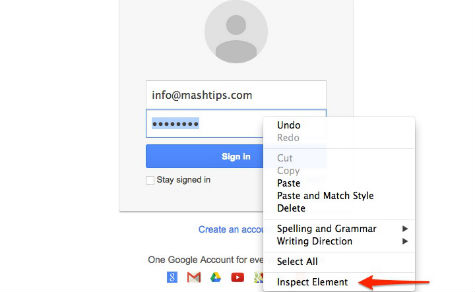
There is a simple piece of web code (HTML) which creates the asterik. If you replace it your password will be revealed. To do this in a browser you have to “inspect” the code on the relevant page. In other words, you need to be on the page where the asteriks appears. When you get there, right click on the asteriks (or near them) and choose inspect element from the drop down list.
When you inspect the code you will find a line which contains the word password (probably more than one) which may start with the word “input”. read along the line until you find type=”password”. Click on top of those words and change the word password to “text”.
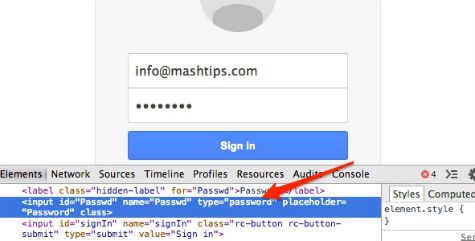
Your password should now be visible in the main screen above!
Allthough possible to do this on an android tablet, it is difficult. If you use Chrom, you can use the command view-source: before the web address (URL) you wish to inspect. However, you may then need to copy the whole code, edit the type field and then run the new html… There are other browesers that can be used.
How to view your browser saved passwords:
Chrome on android:
- Open the Chrome app.
- Tap More
.
- Touch Settings > Save passwords.
Chrome on Computer:
- In the top-right, click the icon you see: Menu
or More
- Choose Settings.
- At the bottom of the page, click Show advanced settings.
- Under “Passwords and forms”, click Manage passwords. A dialogue will appear with a list of saved passwords.
- In the dialogue that opens, the “Saved passwords” section shows all of your saved passwords.
Chrome on iPad:
- Open the Chrome app.
- Tap More
- Touch Settings > Save passwords.
- Touch the link for Access your passwords from any device at passwords.google.com.
Firefox:
To view passwords for a specific site, right-click on the username field on that site, then click , followed by
To view all passwords;
-
Click the menu button
 and choose .
 - Click the panel.
- Click and the Password Manager will open.
Internet Explorer/Windows:
- Locate Credential Manager under control panel (or simply type it into the search area)
- Go to web credentials
- Click on any site and then choose show… you will need your computer login password)
Safari on a Mac:
- From the Safari app, go to the “Safari” menu and choose “Preferences”
- Choose the “Passwords” tab
- Click the checkbox for “Show passwords for selected websites” – this requires the administrator password to be entered for the Mac
- Choose the website from the list whose password you wish to reveal, then choose to “Allow” when permission is requested to reveal that logins password
Safari on an iPad:
- Open the Settings app
- Scroll way down and tap on Safari
- Now tap on Passwords & Autofill under the General section
- Tap on Saved Passwords
- You see a list of all the URLs that use autofill (and under the URLs, information on whether the website has saved a password.)
- Tap on a URL and you’ll be asked to enter your passcode. (Safari makes it possible to save passwords only if you have enabled and set a passcode for your device.)
- Enter your passcode and you can now see the saved password.
Other Android browsers:
there are a number of tools which can be deployed to find passwords on your android device. Some are quite complex, but simply put you just drill down into your device using standard editing and file management tools which go to the areas users normally don’t see. So long as you know which files to look for it is realtively easy…
To briefly see your password as you type on an android device, go to settings, security, password, make visisble or show.